
How to Transcribe Audio to Text Privately (Without Uploading It)
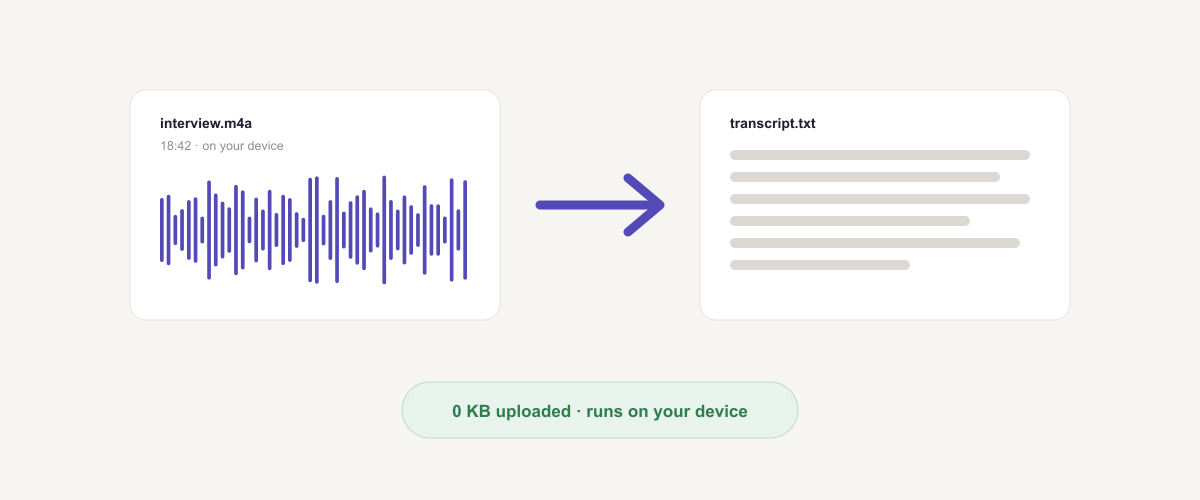
Transcribing audio is one of those tasks where the convenient option and the sensible option quietly disagree. You’ve got an interview, a client call, a lecture, a therapy session, a voice note full of half-formed ideas — and the fastest route is to drag it into whichever free website appears first. That site then uploads your recording to its servers, and you’ve just handed a stranger a conversation you may not have had permission to share.
This guide covers how to transcribe audio to text without uploading it: how in-browser Whisper works, the step-by-step, how to get genuinely accurate results (hint: it’s your audio, not the model), and an honest note on when a cloud service is still the better tool.
The short version: open the audio transcriber, drop in your recording, and wait while it runs. The model downloads once, then everything happens on your device — no upload, no account, no limits. Export the text when it’s done.
Why audio is the worst thing to upload casually
Most files you process online are mundane. Recordings usually aren’t. Think about what’s actually on them:
- Interviews — where a journalist may have promised a source confidentiality.
- Client and patient conversations — frequently covered by professional confidentiality or data-protection rules.
- Internal meetings — unreleased plans, salaries, personnel issues.
- Legal material — depositions, case discussions, notes to counsel.
- Personal voice notes — your own unfiltered thinking, which you’d probably rather not file with a third party.
Two things make uploading these riskier than it feels. First, a recording captures other people — people who didn’t agree to have their voice sent anywhere. Second, it’s worth actually reading the terms of whatever service you use: some reserve the right to use uploaded content to improve their systems. That’s not a conspiracy theory, it’s a licensing clause — and it means a confidential recording can end up as training material.
The clean way around all of this is to not upload at all.
How in-browser transcription actually works
Until recently, good speech recognition needed a server with a serious GPU, which is why every transcription site asked you to upload. That changed when Whisper — OpenAI’s open speech-recognition model — became small and efficient enough to run in a browser through WebAssembly.
So when you drop a recording into an in-browser transcriber:
- A compact Whisper model is downloaded once to your browser and cached.
- Your audio is decoded locally and fed to that model on your own hardware.
- The text comes back — and at no point does the file travel anywhere.
The trade-off is honest: your laptop is not a datacentre GPU, so a long recording takes longer than it would in the cloud, and the very first run has to fetch the model. In exchange, the recording stays yours, it works offline afterwards, and there are no per-minute limits.
How to transcribe audio to text, step by step
1. Open the transcriber and add your file. Go to the audio transcriber and drop in your recording — MP3, WAV, M4A, OGG, FLAC, or the audio from a video file.
 Drop the recording straight onto the page — it’s decoded and transcribed on your device.
2. Let the model load (first time only). On the first run the Whisper model downloads and caches. It’s a one-time wait; afterwards it starts immediately and works offline.
3. Wait for it to process. Progress depends on the length of the recording and the speed of your machine. A short voice note is quick; an hour-long interview takes a while — it’s genuinely computing, not uploading.
4. Review the transcript. Read it through against the audio. Even excellent transcription needs a human pass for names, jargon, and punctuation around overlapping speech.
5. Export the text. Save it as a .txt file and carry on in your editor of choice.
Getting accurate results: it’s your audio, not the model
This is the part most guides skip, and it matters more than which tool you pick. Transcription accuracy is driven overwhelmingly by recording quality:
- Microphone distance is everything. A phone on the table across a room will always transcribe worse than a phone placed next to the speaker. If you can control the recording, get the mic close.
- Background noise is the main enemy — cafés, air conditioning, traffic, music. Whisper is fairly robust, but noise still costs you accuracy.
- Overlapping speech breaks everything. When two people talk over each other, no transcriber reliably untangles it. In meetings, encourage one voice at a time.
- Accents and specialist vocabulary reduce accuracy, particularly technical terms, drug names, and proper nouns. Expect to fix these by hand.
- Record in a lossless or high-bitrate format where you can. Heavily compressed, low-bitrate audio has already thrown away detail the model needs.
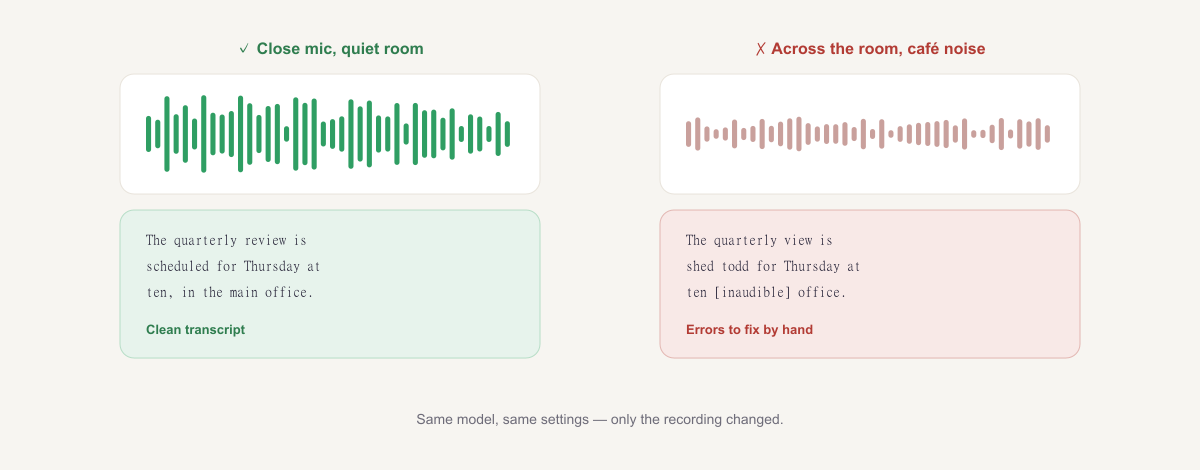 The same model, two recordings: audio quality, not the tool, decides how clean your transcript is.
If a file is in an awkward format or the audio is buried inside a video, run it through the audio converter first — it can extract and convert the audio track without uploading either.
When a cloud service is genuinely the better choice
Being straight about this: in-browser transcription isn’t the right answer for everything.
- Live, real-time transcription of a meeting as it happens — cloud services handle this better.
- Reliable speaker separation across many voices — specialised providers lead here; a local model won’t label “Speaker 1 / Speaker 2” dependably.
- Very long recordings on modest hardware — a three-hour recording on an old laptop will be slow, because the compute is yours.
- Guaranteed turnaround with human review — paid services with human checkers deliver accuracy a model alone won’t.
For the common cases — an interview, a lecture, a meeting recording, a pile of voice notes — in-browser transcription is both good enough and dramatically more private. For the edge cases above, pick the right tool deliberately, and decide knowingly whether that recording should be uploaded.
Turning a transcript into subtitles
A plain transcript has no timings, so it won’t work as captions. If you need subtitles for a video, use the AI subtitle generator instead — it produces timestamped SRT and VTT files from the same kind of in-browser model, so your video stays on your device too.
Troubleshooting
It’s taking a long time. The work is happening on your machine. Longer recordings and older hardware both add time — and the very first run includes the one-time model download.
The transcript has errors in names and jargon. Expected. Models struggle with proper nouns and specialist terms; fix them in a quick review pass.
It transcribed the wrong language. Multilingual models sometimes mis-detect, especially with short clips or heavy accents. A longer, clearer sample helps.
My file won’t load. Convert it to MP3 or WAV first with the audio converter, then try again.
Nothing happens on my phone. Transcription is demanding; some mobile browsers struggle with longer files. A desktop browser is more reliable for anything substantial.
The speakers are all run together. Speaker separation isn’t reliable locally — label speakers yourself while reviewing, which is usually faster than fixing bad automatic labels anyway.
Transcribe your recording now — privately
For most transcription jobs there’s no good reason to upload the file. Open the free audio transcriber, drop in your recording, and let Whisper run on your own machine. It’s free, unlimited, needs no account — and the conversation stays exactly where it started.
Related: convert or extract audio with the audio converter, make timed captions with the AI subtitle generator, or browse all AI tools.
Frequently asked questions
Can I transcribe audio to text for free?
Yes. The in-browser transcriber is free with no sign-up, no watermark and no limit on how many files you transcribe. It uses OpenAI's Whisper model running locally on your device.
Does my recording get uploaded to a server?
No. The audio is processed in your browser using your own device's hardware, so the file never leaves your computer — which matters because recordings are often confidential.
How accurate is in-browser transcription?
For clear speech it's typically very good — Whisper is the same family of model used by many paid services. Accuracy depends far more on your audio quality than on where the model runs: clean, close-mic'd speech with little background noise transcribes best.
What audio formats can I transcribe?
Common formats including MP3, WAV, M4A, OGG and FLAC, plus the audio from video files. If a file isn't accepted, convert it to MP3 or WAV first with the audio converter.
How long does transcription take?
The first run downloads the model once (then it's cached). After that, expect transcription to take a fraction of the recording's length on a modern machine — longer on older hardware, since the work happens on your device rather than a datacentre GPU.
Does it work offline?
Yes, once the model has been downloaded and cached. Because nothing is sent to a server, the transcriber keeps working with your Wi-Fi switched off.
Can it transcribe languages other than English?
Whisper is multilingual and handles many languages, though accuracy varies by language and accent. Clear audio helps considerably.
Can it tell speakers apart?
Not reliably. Speaker separation (diarisation) is one area where specialised cloud services still lead. For interviews, it's usually quicker to label speakers yourself while reviewing the transcript.
Could my recording be used to train someone's AI model?
Not here — nothing is uploaded, so there's nothing to train on. With cloud services it's worth reading the terms: some reserve the right to use uploaded content to improve their systems.
Can I turn the transcript into subtitles?
Yes. For timed SRT or VTT subtitle files, use the AI subtitle generator, which produces timestamped captions from the same kind of in-browser model.