
How to Redact a PDF Properly (and Verify It Actually Worked)
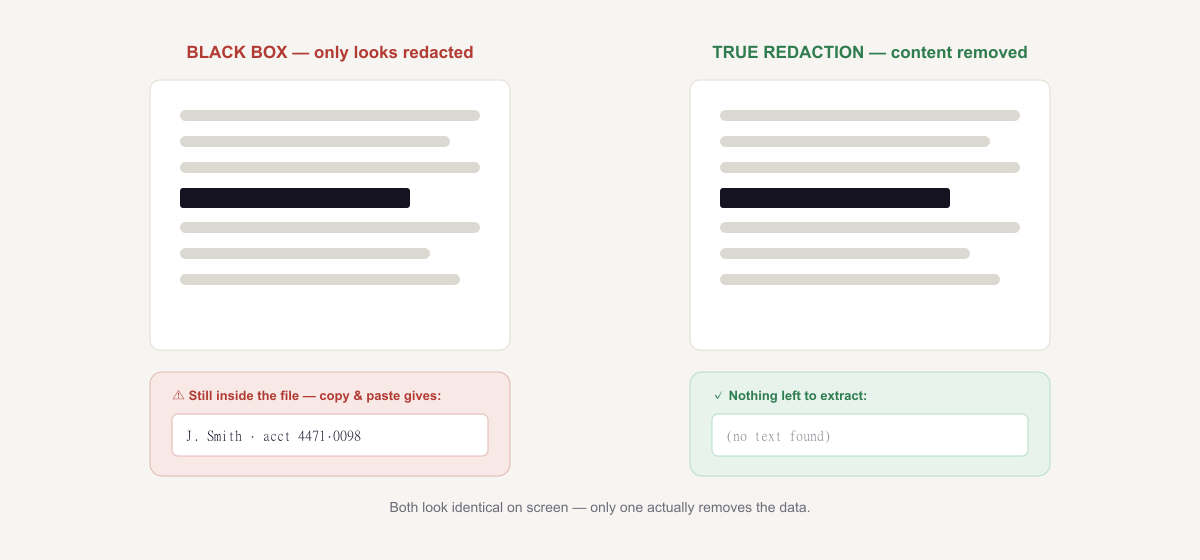
You redact a document for exactly one reason: part of it is too sensitive to share. A client’s name, a salary, a home address, a case number, an account detail. Which makes the two most common ways people “redact” a PDF genuinely alarming — because one doesn’t actually remove anything, and the other hands the confidential file to a stranger’s server.
This guide covers how to redact a PDF properly: what real redaction actually does, the step-by-step, how to verify it worked (almost nobody teaches this), the metadata most people forget, and how to do the whole thing without the document ever leaving your computer.
The short version: open the PDF redactor, mark what you want gone, and export. The marked content is destroyed, not covered — and because it runs in your browser, the file is never uploaded. Then verify: search the exported PDF for a word you removed. If it finds nothing, you’re done.
Why a black box is not redaction
This is the single most important thing to understand, and it’s where most leaks come from.
A PDF has layers. The words on the page live in a text layer — that’s why you can select, search, and copy them. When you draw a black rectangle over a name using an annotation tool, a markup pen, or a highlighter set to black, you add a shape on top of that layer. You don’t remove anything underneath.
The result looks perfectly redacted on screen. But anyone who receives the file can:
- Select the “hidden” text by dragging across the black box and copying it,
- Search for it with Ctrl+F and watch it highlight under the box,
- Extract the entire text layer in seconds with any PDF-to-text tool,
- or simply delete the rectangle, since it’s just an object sitting on the page.
There’s a long and genuinely embarrassing history of court filings, government disclosures and corporate documents leaking names and figures exactly this way — published as PDFs with black boxes painted over text that was still sitting in the file, fully readable to anyone who thought to copy and paste.
Real redaction removes the content itself — the text is deleted or the region is flattened to pixels, so there is nothing left underneath to recover. That’s the difference between looking redacted and being redacted.
How to redact a PDF, step by step
Here’s the process, start to finish. It runs entirely in your browser — nothing is uploaded.
1. Open the tool and add your PDF. Go to the PDF redactor and drop your file onto the page. It loads instantly because it’s being read locally, not sent anywhere.
2. Mark everything that needs to go. Draw a box over each piece of sensitive content — names, addresses, account numbers, signatures, photos. You can also search for a word or phrase to find every instance of it across the document, which is far safer than scanning by eye.
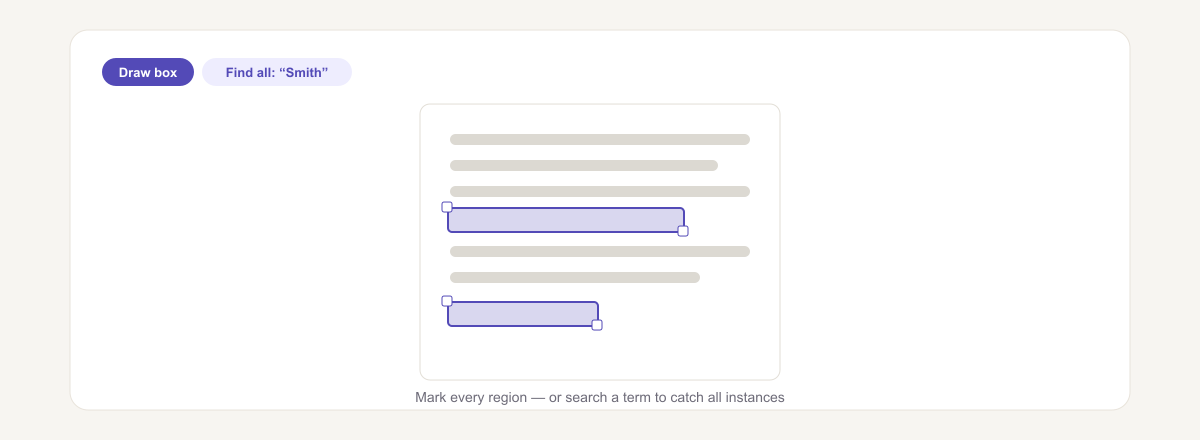 Draw over anything that must be removed — or search for a term to catch every instance across the whole document.
3. Check every single page. This is where redactions fail in practice. The same name usually appears in a header, a footer, a signature block, and an appendix. Page through the entire document before you export; a search-based pass catches what your eyes miss.
4. Export the redacted PDF. On export, the marked regions are destroyed rather than covered — the underlying text is gone from the file you download.
5. Verify it worked. Don’t skip this. It takes fifteen seconds and it’s the only way to know. Here’s how.
How to verify your redaction actually worked
Almost no guide teaches this step, and it’s the one that separates “I think it’s redacted” from “I know it is.” Open the exported file (not the original) and run these three checks:
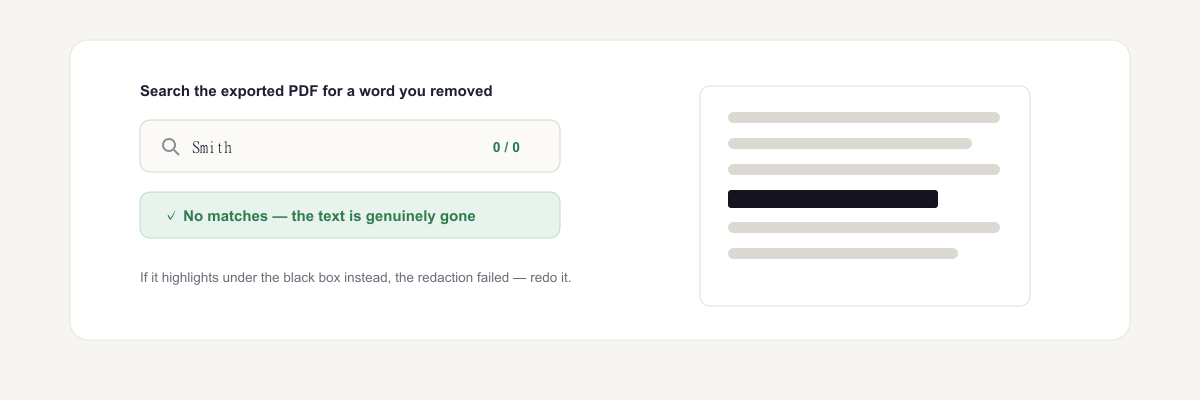 The test that matters: search the exported PDF for something you removed. No results means it’s genuinely gone.
1. Try to select it. Drag your cursor across the redacted area. If text highlights, the content is still there — the redaction failed.
2. Search for it. Press Ctrl+F (Cmd+F on a Mac) and type a word you removed. Zero results is what you want. If it highlights under a black box, stop and redo it.
3. Extract the text. The most thorough check: run the exported file through a PDF to text converter and read the output. Anything still in the text layer will appear in plain text. If your removed content isn’t in there, it isn’t in the file.
If all three come back clean, your redaction is real.
The part nobody mentions: you’re uploading the document you’re protecting
Here’s the irony at the centre of most online redaction tools. You have a document sensitive enough that you’re carefully removing parts of it — a contract, a medical letter, a bank statement, an HR file — and the tool’s very first step is: upload that document to our server.
The big-name desktop guides sidestep this entirely (they assume you own expensive desktop software). The online tools tend to reassure you with a mix of claims that don’t quite add up — “processed in your browser” alongside “your files are deleted after one hour,” which cannot both be the whole story. If nothing is uploaded, there is nothing to delete later.
The honest resolution is simple: a tool that genuinely processes locally never needs a deletion policy, because it never receives the file. Toolsbeaver’s redactor runs entirely in your browser using your own device — the PDF is never transmitted, so there’s no server copy, no retention window, no log, and nothing to leak.
You can confirm this yourself: open your browser’s developer tools (F12), switch to the Network tab, and redact a document. Zero bytes leave your machine. It also works with your Wi-Fi turned off, which is a useful thing to know when the document is genuinely sensitive.
Don’t forget the metadata
Redaction cleans the page content. It usually doesn’t touch everything else a PDF carries:
- Author and title fields — often your real name and the original filename, like
Smith_termination_draft_v3.pdf. - Creation software and timestamps.
- Comments and annotations left in the margins.
- Attachments embedded in the file.
Any of these can give away exactly what you just spent time removing. After redacting, strip the document properties with the PDF metadata editor — it takes a few seconds and closes a real hole.
Special case: scanned documents
A scanned page is an image, so there’s no text layer to extract — covering a region is genuinely enough. With one caveat: if the scan has been through OCR, there may be an invisible text layer sitting on top of the image, and that layer is extractable like any other.
So treat scans the same way: redact, then verify with the text-extraction check above. If you’re not sure whether a file has been OCR’d, running it through an OCR tool or the text extractor will tell you quickly.
Troubleshooting
The text is still selectable after exporting. You covered it instead of removing it — likely using an annotation, highlight, or drawing tool rather than a true redactor. Redo it with the redact tool and verify.
I missed an instance on another page. Use search-based marking rather than drawing by eye; it finds every occurrence of a term across the whole document.
My form fields still contain the data. Interactive form values live separately from page text. Flatten the PDF first so the values become part of the page, then redact.
The file is huge after redaction. Rasterising regions can increase size. Run it through the PDF compressor afterwards.
My name is still showing in the document properties. That’s metadata, not page content — clear it with the metadata editor.
Redact your PDF now — privately
Proper redaction comes down to three things: remove the content rather than cover it, check every page, and verify the result before you send it. Do those and the information is genuinely gone.
Open the free PDF redactor, mark what needs removing, and export. It’s free, unlimited, requires no sign-up — and because it runs entirely in your browser, the confidential document you’re protecting never leaves your device.
Related: clear the file’s metadata, extract the text to double-check your work, or browse all PDF tools.
Frequently asked questions
Is drawing a black box over text the same as redacting it?
No. A black rectangle is just a shape drawn on top. The original text stays in the file's text layer, so anyone can select it, copy it, or extract it with a PDF-to-text tool. True redaction deletes the underlying content.
How do I permanently remove text from a PDF?
Use a tool that rasterises or deletes the covered region rather than drawing over it. In the redact tool, mark the areas you want gone and export — the text underneath is destroyed, not hidden.
How can I check my redaction actually worked?
Open the exported PDF and try to select the redacted area, then press Ctrl+F (Cmd+F) and search for a word you removed. If it finds nothing and nothing is selectable, it's gone. For certainty, run the file through a PDF-to-text extractor and read the output.
Can redacted text be recovered?
If it was properly removed, no — the data no longer exists in the file. If it was merely covered with a shape or highlighted in black, yes, it can be recovered trivially.
Does redacting a PDF remove the metadata too?
Usually not. Author name, title, creation software, and comments live separately from page content and survive redaction. Clear them separately with a PDF metadata editor.
Do I have to upload my PDF to redact it?
No. Toolsbeaver's redactor runs entirely in your browser, so the document never leaves your device — which matters most when the file is sensitive enough to need redacting in the first place.
Is it safe to redact confidential documents with an online tool?
Only if the tool processes locally. Most online redactors upload your file to their servers, which means handing over the exact confidential document you're trying to protect. Prefer a tool that never uploads.
How do I redact a scanned PDF?
A scan is an image, so there's no text layer to remove — covering the area is genuinely sufficient. But if the scan has been OCR'd, an invisible text layer may exist underneath, so verify with a text extractor afterwards.
Can I redact several pages at once?
Yes. Mark regions on each page you need, then export once. Review every page before exporting — missed pages are the most common redaction mistake.
Is the redact tool free?
Yes — free, unlimited, no sign-up and no watermark, and your file is never uploaded.