
How to Crop a Photo Into a Circle
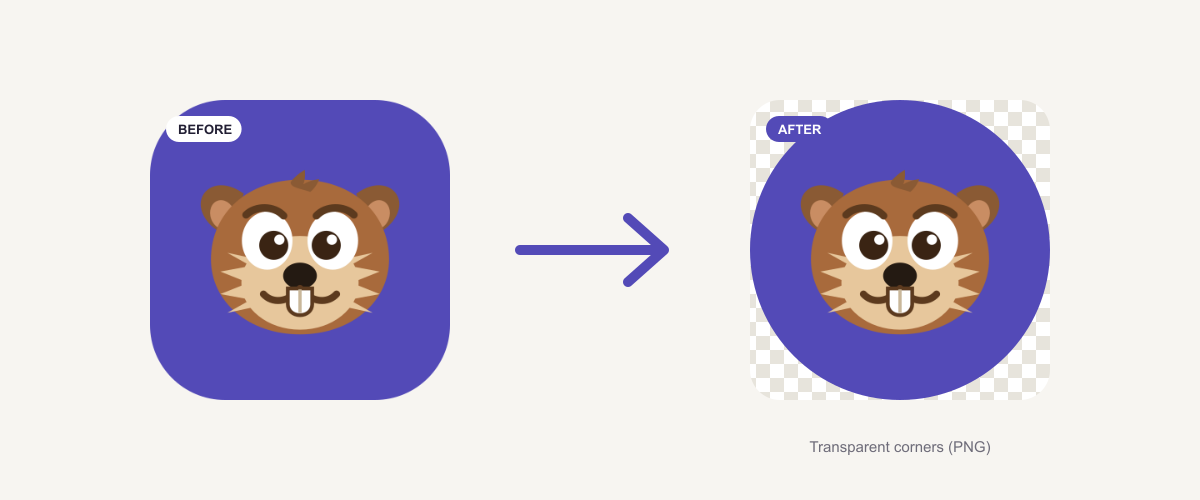
A round photo looks clean everywhere it matters — a profile picture on Instagram or LinkedIn, a circular logo, a Discord avatar, a sticker. But turning a normal rectangular image into a neat circle trips people up more than it should: you end up with a white square behind the circle, a watermark stamped across your face, or a prompt to upload your photo to a server you’ve never heard of.
This guide fixes all three. You’ll learn exactly how to crop a photo into a circle in a few seconds — for free, with a genuinely transparent background, no watermark, and without your image ever leaving your device. We’ll also cover the sizing every platform expects, how to fix the white-corner problem, and when other methods (Photoshop, your phone, PowerPoint) are worth the extra effort.
The 20-second version: open the circle crop tool, drop in your photo, switch the shape to a circle, position it, and download it as a PNG (PNG is what keeps the corners transparent). That’s it. The rest of this guide explains each step and the details that actually matter.
How to crop a photo into a circle, step by step
Here’s the full walkthrough. It runs entirely in your browser, so nothing is uploaded.
1. Open the tool and add your photo. Head to the image cropper and drag your image onto the page, paste it, or click to browse. It accepts PNG, JPG, and WebP. Because everything runs on your device, even a large photo loads instantly — there’s no upload bar to wait on.
 Drop the photo straight onto the page — it’s processed locally, so it never touches a server.
2. Switch the crop shape to a circle. Select the circular (or “ellipse”) crop mode. A round selection appears over your image.
3. Position and size the circle. Drag the circle so your subject — usually a face or a logo — sits in the centre, and resize it until the framing looks right. Leave a little breathing room around a face; profile pictures get scaled down small, and a too-tight crop looks cramped.
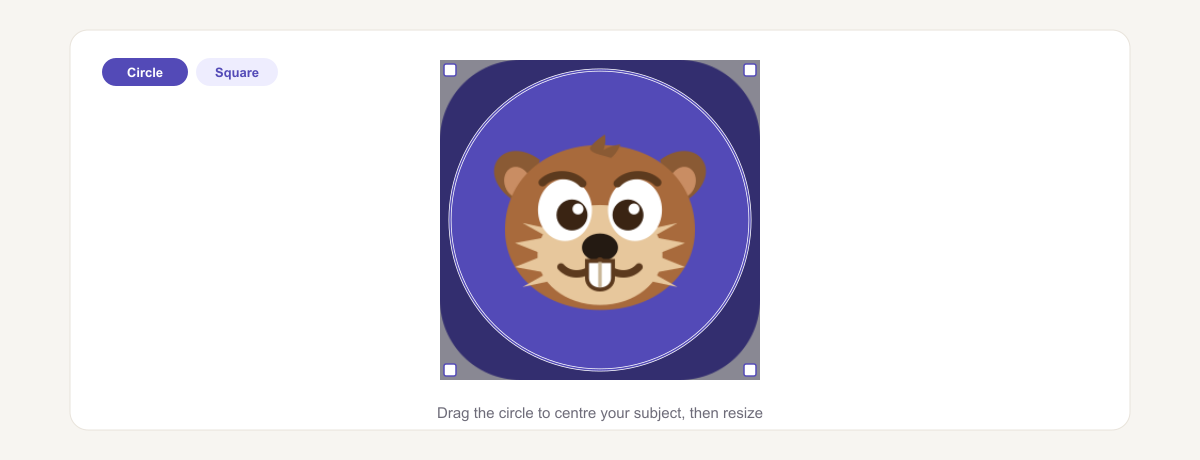 Centre your subject and leave a little margin — avatars are displayed small, so tight crops feel claustrophobic.
4. Download as a PNG. Export the result and choose PNG. This is the single most important step, and it’s where most people go wrong — so it gets its own section below.
That’s the whole process. On a typical photo it takes well under a minute, and you can crop as many images as you like with no limits.
Keep the background transparent (the white-corner problem)
Here’s the thing nobody tells you: a circle is round, but an image file is always a rectangle. When you crop a photo into a circle, the four corners outside the circle have to become something. You have two choices:
- Transparent corners — save as PNG. The area outside the circle becomes see-through, so your round photo sits cleanly on any background. This is what you want for profile pictures, logos, and stickers.
- White (or coloured) corners — save as JPG. JPG can’t store transparency, so the corners fill with a solid colour, usually white. On a white page you might not notice; on a coloured background you’ll get an ugly square frame around your circle.
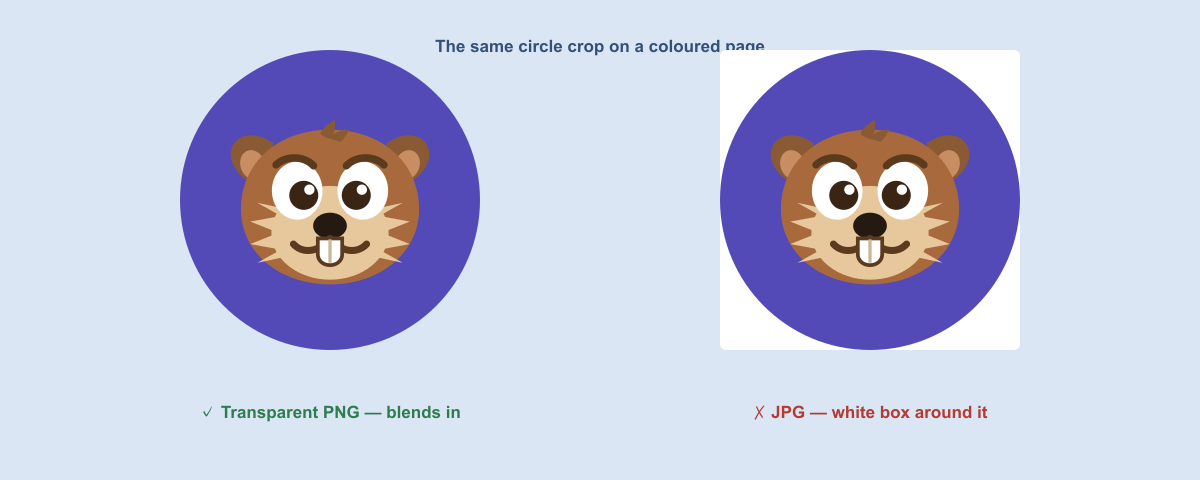 Left: a transparent PNG sits cleanly on any colour. Right: a JPG fills the corners with white, giving you a boxed-in circle.
So the rule is simple: if you want a real circle, export PNG. If your source photo still has a distracting background inside the circle too, remove it first with a background remover, then crop — you’ll get a clean subject on a fully transparent canvas.
What size should a circular photo be?
Most platforms display avatars as a circle but store them as a square, then mask the corners. To stay sharp, upload a square image at (or above) the platform’s display size. Here are the sizes worth knowing:
| Platform | Recommended upload size |
|---|---|
| Instagram profile photo | 320 × 320 px (displays ~110 px) |
| WhatsApp / Discord avatar | 500 × 500 px |
| LinkedIn profile photo | 400 × 400 px (up to 7680 px) |
| Facebook profile photo | 320 × 320 px minimum |
| X (Twitter) profile photo | 400 × 400 px |
| YouTube channel icon | 800 × 800 px |
A safe all-purpose choice is 500 × 500 px — large enough to stay crisp when scaled up, small enough to stay a light file. If you need to hit an exact pixel size after cropping, run the result through an image resizer, and if the file is heavy, an image compressor will shrink it without visible quality loss.
Other ways to crop a circle (and when they’re worth it)
An online tool is the fastest route for most people, but it’s not the only one. Here’s an honest comparison:
- Photoshop / GIMP — total control (feathered edges, precise masks), but it’s overkill for a profile picture and there’s a real learning curve. Worth it if you’re already a user.
- Your phone — iPhone and Android don’t crop to a circle natively; you’ll need an app, and most stamp a watermark or push a subscription. Fine in a pinch, annoying at scale.
- PowerPoint or Word — you can fit a picture into an oval shape and export it, but getting a perfect circle with a transparent background is fiddly and the output quality is inconsistent.
- A browser tool like this one — no install, no account, works the same on desktop and mobile, and (crucially) it can export a transparent PNG. The trade-off is you need a modern browser, which you already have.
For a one-off round avatar, the browser tool wins on speed. For heavy retouching, reach for Photoshop.
Do it privately — why “no upload” matters
Most “free” circle croppers upload your photo to their servers, process it there, and promise to delete it “later.” For a meme that’s fine. For a passport photo, an ID, a child’s picture, or anything you’d rather not hand to a stranger’s server, it’s worth avoiding.
Toolsbeaver’s cropper runs entirely in your browser using your device’s own processing — your photo is never uploaded, so there’s nothing for anyone to store, log, or leak. You can verify this yourself: open your browser’s developer tools, watch the Network tab while you crop, and you’ll see zero bytes uploaded. It also means the tool keeps working even with your Wi‑Fi switched off.
Troubleshooting
My circle has white corners instead of transparent ones. You saved as JPG. Re-export as PNG — JPG can’t store transparency.
The result looks blurry. Your source image was smaller than the size you need. Start from the highest-resolution original you have; upscaling a tiny photo can’t add detail. An image upscaler can help a little, but a larger original always wins.
The background inside the circle is distracting. Remove it before cropping with the background remover, then crop the clean subject.
It won’t work on my phone. Make sure you’re on an up-to-date browser (Chrome, Safari, or Edge). The tool is mobile-friendly, but very old browsers can struggle with in-browser image processing.
My file is too big to upload as an avatar. Circle-cropped PNGs can be chunky. Run it through an image compressor to shrink the file without a visible quality drop.
Crop your photo into a circle now
You don’t need Photoshop, an app, or an account to get a clean round photo — just the right tool and the PNG export trick. Open the free circle crop tool, drop in your image, switch to circle mode, and download a transparent PNG. It’s private, unlimited, and takes about twenty seconds.
Want a clean subject before you crop? Remove the background first with the background remover, or explore the full set of image tools.
Frequently asked questions
Is it free to crop a photo into a circle?
Yes. The circle crop tool is completely free — no sign-up, no watermark, and no limit on how many photos you crop.
How do I keep the background transparent?
Export your crop as a PNG. PNG supports transparency, so the corners outside the circle become see-through. JPG does not.
Does my photo get uploaded anywhere?
No. The tool processes your image locally in your browser, so it never leaves your device — ideal for sensitive photos like IDs.
What size should I make a circular profile picture?
500 × 500 px is a safe all-purpose size. It stays sharp when scaled and keeps the file light. See the platform table in the guide for exact sizes.
Can I crop a photo into a circle on my phone?
Yes — the tool works in your mobile browser, with no app to install. Just open the page and add your photo as usual.
Will cropping reduce my image quality?
Cropping itself doesn't degrade quality; it only removes the area outside the circle. Saving as PNG keeps it lossless. Only JPG re-compression can soften the image slightly.
Can I crop an image into a circle without a watermark?
Yes. Unlike many phone apps, this tool never adds a watermark to your result.
What's the difference between crop and fit mode?
Crop trims the image to the circle. Fit shrinks the whole image inside the circle without cutting anything — useful when you don't want to lose any of the picture.
Can I make a transparent circle from a JPG?
Yes — add your JPG, crop it to a circle, and export as PNG. The output will have transparent corners even though the source was a JPG.
How do I put a border around my circular photo?
Place the transparent PNG on a slightly larger coloured circle in any editor to create a ring, or use a cropper that offers a built-in border option.